Find, select, and organize: better search in Streamient
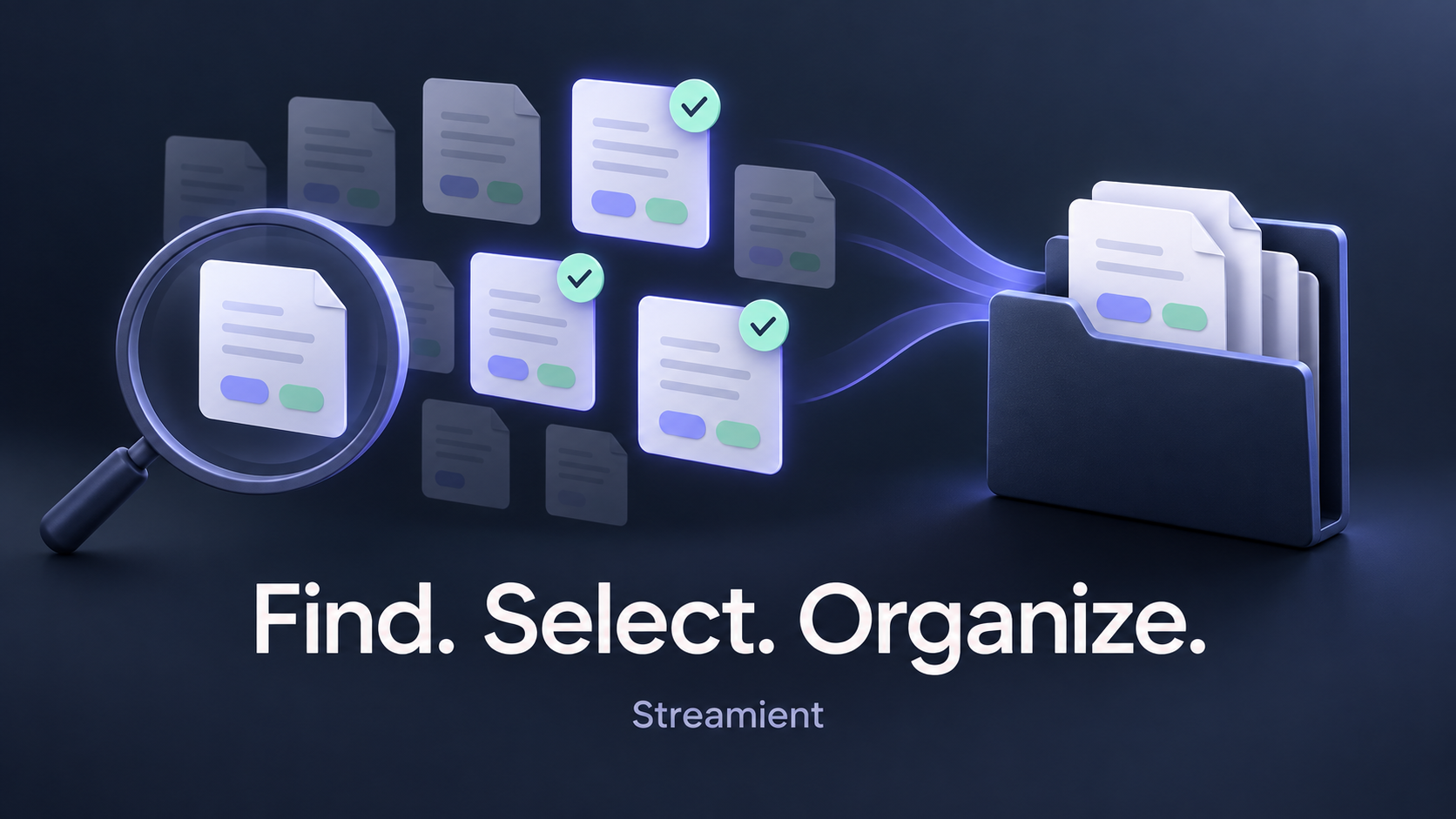
A project rarely starts with a perfectly organized set of records. You save a few notes, capture useful links, and collect decisions as the work develops. Later, that work gets its own project, and you need to gather everything that belongs there. Finding the records is the first step. Moving and organizing them should be just as straightforward.
Streamient now brings those steps together with selectable search results, exact tag filters, and bulk actions. You can find a specific set of records, review the matches, select what you need, and organize them from the same results page.
The update also makes project scope clearer in AI search and brings familiar list-selection controls to search results, including Shift-click ranges.
Search for the tag you actually mean
Sometimes you want to explore a topic. Other times, you know exactly how a record was tagged and want to find every record carrying that tag.
You can now make that distinction explicit. Choose a tag in the search page's tag picker, or type a tag filter directly into the search box:
tag:typerelayThis finds records containing the typerelay tag. A record with the tags typerelay, api, and debugging still matches. Typerelay does not have to be its only tag. A record that merely mentions the word in its body does not qualify as a tag match.
For a tag containing spaces, put its name in quotes:
tag:"public api"You can also combine tags to narrow the results:
tag:typerelay tag:apiHere, each matching record must contain both tags. Additional tags are fine. Use the stored tag names, or pick them from the available tags to avoid guessing their spelling.
Exact tag filtering applies to notes, memories, and saved URLs. Other record types keep their existing fields and supported actions.
One results page for quick search and AI search
The quick-search modal remains a convenient way to find something and open it immediately. When it returns matches, you will also see View all results beside the result count. That opens the full search page, where you can refine the query, choose a project, filter by tags, and select records.
AI search leads into the same results experience. For example, you can ask:
Show me all the records with the tag "typerelay".
That request becomes an exact tag search. The AI project picker now follows your active project, and changing project scope clears incompatible search context. You can review the project filter and the returned records before deciding what to change.
Select a record, a range, or every match
Search results now use the same floating action-bar style as the other record lists. There is no permanent row of action buttons competing with the search form. Select a record, and the action bar appears with your selected count. Clear the selection, and it disappears.
For a group of adjacent records, click one checkbox and then Shift-click another. The range between them is included. You can work forwards or backwards through the visible results, and Shift-click also supports deselecting a range.
The single Select all checkbox selects every matching record, including matches on other pages. You do not need to select each page separately. Individual selections also remain selected as you move between pages; applying different search filters clears the selection so you can start with the new result set.
Apply the change once
From the floating action bar, you can move selected records to another project, add tags, remove tags, or delete records by moving them to trash. The controls follow the capabilities of each record type, and records that cannot complete an action are reported individually.
Successful changes update the affected results directly. Moving a record out of the project you are searching, or removing a tag required by the current filter, removes it from that result set without reloading the entire page.
If a record changes after you select it, Streamient asks you to review it before retrying the bulk action. This helps keep your selection tied to the records you actually inspected.
A practical example: give tagged work its own project
Suppose your Typerelay notes, memories, and links started inside a broader project. They already share the typerelay tag, and you now want to collect them in a dedicated Typerelay project.
- Open search and choose the project where those records currently live.
- Enter
tag:typerelay, or choose Typerelay in the tag picker. - Review the matching records and their count.
- Select individual records, use Shift-click for a visible range, or choose Select all for every match.
- Click Move, choose the destination project, and submit.
The same approach works for adding a shared tag to a set of research notes or removing an outdated tag from records you have reviewed.
Streamient is a shared memory layer for people and connected AI tools. Keeping that memory useful means being able to inspect it and make corrections as your work changes. These search improvements make that maintenance easier: find the right set, check the selection, and apply the change.
Open Streamient and try an exact tag search in one of your projects.